How do you use Canva Dream Lab for marketing images, and is it good enough with text?
Step by step: a social post with a headline, images in your brand's style, and editable text. What Dream Lab costs on each Canva plan, what Canva's new Craft model gets right and wrong with text according to a hands-on review, how it compares with GPT Image, Nano Banana, Adobe Firefly and Ideogram on price and licensing, and the AI labels on Meta and TikTok.
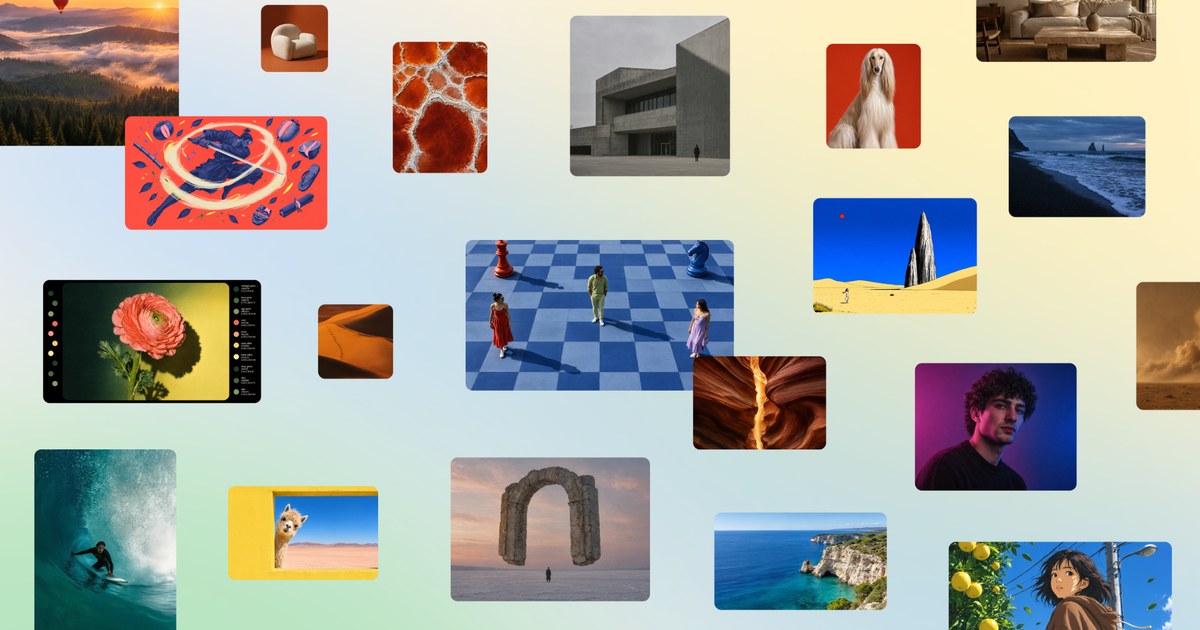
How do you use Canva Dream Lab for marketing images, and is it good enough with text?
By Andrej Ruckij · October 28, 2026 · updated November 4, 2026
TL;DR: Open Canva’s Homepage, select More, then Dream Lab, describe the image with its format, layout and exact text, and pick one of four results. Since October 22 Dream Lab runs on Craft, Canva’s first in-house image model, trained heavily on design templates. In the one hands-on review I found, it got every requested word right on a poster, a menu and an infographic, but invented extra copy in 3 of 4 poster variations, including opening hours nobody asked for. Canva’s own API documentation also recommends a different model, Z Image Turbo, for images that include text. So my read: use Dream Lab for the picture and the layout, then type prices, dates and offers in as real Canva text, and proof every word before it goes out. It runs on your plan’s shared AI allowance (Free is limited; Pro has 10 times Free’s allowance). Brand-style generation needs a paid plan. Every generated image carries a visible AI label, and AI images in Meta and TikTok ads need disclosure too.
If you need ad video and visuals for TikTok, Facebook or Instagram in every format rather than one-off images, Primores produces them: content production.
What changed on October 22, and since
Canva launched Craft, the first image model it built and trained itself, and put it inside Dream Lab for every Canva user. Two things about it matter for marketing images.
It plans before it draws. One model reads the prompt and writes a plan of the composition: which elements appear, where, how big, in what hierarchy, and what text has to be in the image. A second model renders that plan at up to 2K. Canva says this is what puts legible text and objects where you asked, and lets you change one element without redrawing everything else.
It learned from design, not mostly from photos. Canva says the training data includes millions of human-made templates from its library: posters, social posts, presentations, infographics, menus. Its designers then compared more than 25,000 image pairs against other models. Canva also says Craft can write text in 55 languages and that prompts work in any language.
On rankings, Canva says Craft debuted fourth on DesignArena, a crowdsourced ranking where people vote on pairs of images, and first in the People & Portraits and Landscapes & Nature categories. That’s Canva reporting its own placing, and the three models ahead of it are all OpenAI’s. More on what the ranking leaves out below.
Three things have moved since Craft launched:
- Canva Brush (October 29): a second Canva model that edits finished designs in Canva AI, such as restyling a design or reworking it for another channel. It’s live for Canva Pro first, and Canva says Brand Kit support is still being built.
- Craft-fast and Craft-ultrafast, cheaper variants Canva announced with Craft: Canva has published no release date or price for either; I found none as of November 4.
- The Canva MCP server still lists Craft as “Coming Soon”. When it ships, an AI assistant can make a launch graphic “as one step in a bigger task”, in Canva’s words. That’s the part I find most interesting for the long run: the design tool turns into something an agent calls. For now it’s an announcement.
Who this is for, and who it isn’t
- For: small businesses without a designer making social posts, flyers, menus, story graphics and ad images; marketing teams already working in Canva who want images that fit a template.
- Not for: logos (Dream Lab makes images, not vector files), fine print or technical drawings (Canva itself lists these as things it still needs to improve), large-format print, and any image where a wrong word costs you money unless someone proofs it.
What it costs on each plan
Craft has no separate price. Every Dream Lab generation, reference image and resolution boost draws from your plan’s shared monthly AI allowance, and Canva’s help page lists “Create an image with Canva AI” among its Premium AI tools.
| Plan | Price on canva.com (shown to a European visitor, Nov 1, 2026; varies by country) | AI allowance per Canva | Brand Kit image generation |
|---|---|---|---|
| Free | €0 | ”Limited access to Standard and Premium AI” | No |
| Pro | €110 a year, one person | 10x Canva Free, for Premium and Ultra tools | Yes |
| Business | €170 a year per person | 20x Canva Free, each member has their own allowance | Yes |
| Enterprise | Contact sales | 20x Canva Free | Yes |
| AI Pass add-on (Pro or Business) | Price not listed | 40x Pro, or 20x Business | n/a |
Canva doesn’t publish the number of images behind “10x”. Two reviews quote figures: Gaurav Tiwari says Free allows up to 20 Standard or Premium uses, and eesel lists Pro at up to 200 Premium and 20 Ultra uses a month. Canva’s own wording is that these ranges assume simple prompts and the lightest tools, and that “more complex prompts and tasks use more” of the allowance. Treat the numbers as a ceiling.
To check where you stand: profile icon, then Settings, then Billing, and look under AI usage. When you run out, Free users get short pauses between generations; Pro and Teams can keep going with short pauses, buy AI Pass, or wait for the monthly reset.
How to do it
How do I make a social post with a headline in Dream Lab? (about 15 minutes)
- Go to your Canva Homepage. Dream Lab isn’t inside the editor; Canva’s help page gives looking for it there as a reason people can’t find it. On desktop, select More, then Dream Lab. Canva’s launch post also points to Dream Lab in the bottom left panel.
- Write the prompt with five parts: the format, the subject and composition, the light and colours, the exact text in quotation marks with where it goes, and what you don’t want. For example: “Instagram feed post, 4:5. Top-down flat lay of a ceramic coffee cup on light oak, two cinnamon buns beside it. Warm morning light, cream and terracotta colours. Headline ‘Autumn menu’ in the top third, large serif type. No other text.”
- (Optional) Add a reference image to guide the look or composition. This uses AI allowance.
- Select Generate. You get four options.
- Pick one, or type a follow-up change (“make the cup green”) and generate again. For a targeted change, select the image and use Edit image.
- (Optional) Select Boost resolution for a sharper file. This also uses AI allowance.
- Open the image in a design, then add the critical words yourself as real text boxes: price, date, address, offer terms. Use your Brand Kit fonts.
How to check it worked: read every word on the image out loud, including words you didn’t ask for. Then look at the post at phone size; small text that reads fine on a laptop may not. Open Dream Lab and select History to find any earlier version.
Why “No other text” and step 7: in Tiwari’s hands-on test, three of four poster variations added copy he hadn’t asked for, and one printed “Open Daily 6:30 AM – 6:00 PM”. On a real flyer that’s a promise you didn’t make. Telling the model not to add text is my suggestion; I found no test of whether it fully stops it, so step 7 is the safer habit.
What prompts work best?
From Canva’s help page and launch post, plus what the hands-on review showed:
- Be specific about style, colours, lighting and layout. Canva’s help page asks for exactly this.
- Describe the composition directly: “top-down flat lay”, “wide-angle”, “portrait with soft studio lighting” are Canva’s own examples.
- Name every element you want weighted. Canva’s example is “a purple sky, long shadows and a lone tree”, and it says Craft puts “the emphasis where you wanted it”.
- Put every word of copy in quotation marks and say where it sits. The planning step works from what you list.
- Keep copy short. Canva says fine print is still on its list to improve, and Tiwari found small infographic text hard to read on a phone.
How do I make images that match my brand? (about 15 minutes, paid plans)
This needs Canva Pro, Teams, Business, Enterprise or Nonprofit. In a team, only owners, admins and brand designers can do it.
- From the Homepage side panel, select Brand, then the Brand Kit tab.
- Under Assets, hover over one of your own brand photos and select the More icon.
- Select Generate from photo and describe what you want.
- Pick the dimensions: 1:1, 16:9 or 9:16.
- Select Generate, review the results, and select Add to Brand Kit for the ones you keep.
Your best real photo makes the best style reference. I’d rather anchor generated images on a real shoot than make them from nothing, which is the point of glossary/human-anchored-ai-multiplication.
Two cautions. Canva’s help page for this feature still says Leonardo.ai, the company Canva bought in 2024, powers it, so I can’t tell you whether Brand Kit generation already runs on Craft. And in Tiwari’s test the “Apply brand” option was greyed out inside Dream Lab itself even with a Brand Kit set up, so in plain Dream Lab you still have to describe your colours in the prompt and apply brand fonts afterwards.
Can I edit the text in a Dream Lab image?
Canva says Craft’s output is built to work with Magic Layers, which turns a flat image into separate, editable text boxes and objects. Magic Layers launched in March as a public beta in the US, UK, Canada and Australia, and I found no announcement of a wider rollout. It’s a Premium AI tool, so each conversion uses allowance. In Tiwari’s test, converted menus lost their dotted leader lines and needed manual repair.
If you don’t have Magic Layers, edit by prompt, or add your text in the editor on top of the image as in step 7 above.
What goes wrong, and how to check for it
The most useful evidence is one hands-on review: Gaurav Tiwari ran three agency-style briefs through his own Canva Pro account, in a review posted October 24. One reviewer is a small sample, so read these as things to check, not rates to expect.
| What happened in the test | How to check for it |
|---|---|
| All requested text was right: poster headline, dates and three offers in 4 of 4 variations; 8 dish names and 8 prices in 4 of 4; 5 infographic steps word for word | Still proof every word; he tested English only, so other scripts are unverified |
| Extra copy nobody asked for: unrequested text on 3 of 4 posters, one of them invented opening hours; an invented “Bistro Italiano” subtitle on 3 menus | Read every word on the image, not only the ones you asked for |
| One infographic variation numbered its steps twice | Count list items and numbers |
| A one-change edit re-rendered the whole image, with faint shifts along edges | Re-check logos and small text after every edit, not just the part you changed |
| Dream Lab and the API offered 6 aspect ratios, against the 30+ Canva promotes, and 9:16 exported at 1355 x 2399, not the 1080 x 1920 story size | Check pixel size before uploading to a story or ad slot |
| Magic Layers dropped dotted lines on a menu | Compare the converted design with the original image |
His verdict: a strong choice for first drafts inside Canva, with a person proofing every word and finishing each file. He also notes that at least one of the most-shared launch posts was a paid partnership.
Two pieces of counter-evidence change how I’d use it:
- Canva’s own developer docs recommend Z Image Turbo for images that include text. In the image API, Canva describes Craft as the pick for “infographics, posters, slides, people and portraits” and marketing materials, and Z Image Turbo as the pick “if the image includes text”. None of the sources I read mention a model choice inside Dream Lab, so as far as I can tell you can’t make that choice in the app. That’s a reason to keep critical copy as real Canva text.
- Craft’s best categories aren’t marketing ones. Canva’s announcement highlights People & Portraits and Landscapes, where it ranked first. In eesel’s reading of the chart Canva published, Craft is sixth of 85 in Marketing Materials, the category that matters most for this reader.
I found no independent test running the same marketing brief through Craft, GPT Image, Nano Banana, Firefly and Ideogram. Until someone publishes one, run your own: same prompt, five posters, count the wrong words.
How does it compare with other tools?
| Tool | What you pay (as listed, Nov 1, 2026) | Text and layout | Brand consistency | Licensing |
|---|---|---|---|---|
| Canva Dream Lab (Craft) | Inside your Canva plan’s AI allowance (Pro €110 a year, EUR price shown in Europe) | Requested text right in the one hands-on test, plus invented extras; output lands straight in a Canva design | Brand Kit “Generate from photo” on paid plans; fonts and colours applied in the editor | You own the output under Canva’s terms; IP indemnity for AI output only on Enterprise with 100+ paid users |
| GPT Image 2.5 (OpenAI) | API: US$30 per million image output tokens, US$15 in batch; no per-image price on the model page | WinBuzzer notes ChatGPT images sometimes add stray spacing, such as between a currency sign and the number | Reference images and editing via the API; no brand kit | OpenAI’s terms assign the output to you |
| Nano Banana family (Google Gemini API) | Nano Banana 2.1 about US$0.034 per 1K image and US$0.05 at 2K; Nano Banana Pro US$0.134 at 1K-2K; half price in batch | WinBuzzer notes Gemini images sometimes get details wrong, such as a clock at 3:00 when 3:15 was asked for | Reference images; you build the workflow | Check Google’s terms for your use |
| Adobe Firefly | Standard US$9.99 a month (2,000 credits), Pro US$19.99 (4,000), Pro Plus US$49.99 (10,000) | I found no independent text test | Partner models (Google, OpenAI, Flux) available in the same app | Adobe: “Outputs from Adobe Firefly AI models are safe for commercial use”; indemnity for eligible enterprise customers; partner-model output is your responsibility |
| Ideogram | Plus US$20 a month or US$15 billed yearly (2,400 priority credits); Pro US$60 or US$42 yearly; pay as you go 1 US cent a credit | I found no independent test I’d rely on | ”Unlimited character consistency” on paid plans; custom models on Enterprise | Ideogram doesn’t restrict commercial use of output and assigns its rights to you |
Which to pick
- You already design in Canva: use Dream Lab for the image and the layout, and type the copy in Canva. It saves you exporting from one tool and importing into another.
- The text is the ad (a price, a long headline, a list): try two or three tools on the same prompt before committing; Canva’s own docs suggest Craft isn’t its first choice for text.
- Commercial safety is the priority (a client asks who’s liable): Firefly’s own models are the only ones here with a commercial-safety statement on the plans page, and both Adobe and Canva limit indemnity to enterprise customers.
- You want hundreds of variants through code: the Gemini and OpenAI APIs are priced per image or token. Canva’s image API is still a preview, rate-limited to 20 requests a minute per user, it uses each user’s own AI allowance, and download links expire after 24 hours.
Can I use Dream Lab images commercially?
Canva’s AI Product Terms say you own your output and may use it “for any lawful purpose”, at your own risk. Four details matter for marketing:
- Outputs may not be unique. Canva’s terms say other users may get similar outputs, so don’t build a trademark around a generated image.
- Copyright protection is uncertain. Canva’s help page says whether AI images can be copyrighted depends on the country. In the US, the Copyright Office concluded in January 2025 that AI output is protected only where a human supplies the expressive elements, “not the mere provision of prompts”. Editing, arranging and adding your own text in Canva is the human part.
- Recognisable characters and brands in a generated image may still be protected by someone else’s copyright or trademark. Canva says it can’t give you that permission.
- Don’t hide that it’s AI. Canva’s terms prohibit using its AI to “mislead anyone” that output is human-made, and prohibit removing provenance metadata, including C2PA tags. Canva’s help page says generated images carry a visible AI label. I found no Canva page stating whether Dream Lab exports also carry C2PA metadata, so check your exported file.
Do I have to label Dream Lab images on Meta and TikTok?
- Meta ads: images “created or edited using third-party AI tools” get an “AI info” label in the ad’s details, sometimes next to “Sponsored”. Meta gives resizing and colour correction as examples of minor changes that don’t get the label.
- Meta organic posts: Meta labels images when it detects industry-standard AI indicators (the C2PA and IPTC metadata standards). Its 2024 announcement requires people to self-disclose photorealistic video and realistic audio; it doesn’t require it for still images.
- TikTok ads: AI-generated content needs TikTok’s AIGC label or “a clear disclaimer, caption, watermark, or sticker of your own”. Undisclosed AI content gets the ad rejected or restricted. TikTok also auto-labels uploads carrying C2PA Content Credentials.
- EU: under Article 50 of the AI Act, deployers of an AI system that generates or manipulates a deepfake must disclose it, and the definition covers content that resembles existing people or places and would falsely appear authentic. A realistic AI person in an ad is the case to think about. More in glossary/content-provenance.
What I’d do this week
Take your next planned social post. Write one prompt with the format, the composition and the headline in quotation marks plus “No other text”, and generate it in Dream Lab. Read every word on all four results and note how many have an error or an extra. Then rebuild the best one with the headline as real Canva text and compare. That one test tells you whether Dream Lab handles your text, or whether it should only make your backgrounds.
Sources
- Canva: Introducing Canva Craft (Oct 22, 2026)
- Canva: Introducing Canva Brush (Oct 29, 2026)
- Canva Help: Generate images with Dream Lab
- Canva Help: Create on-brand images with AI
- Canva Help: Understanding your AI usage
- Canva: pricing
- Canva: AI Product Terms (effective June 26, 2026)
- Canva: Enterprise (indemnity FAQ)
- Canva: Introducing Magic Layers (Mar 11, 2026)
- Canva Developers: Create image generation job (model recommendations)
- Gaurav Tiwari: Canva Craft review for agencies and freelancers (Oct 24, 2026)
- eesel: Canva Craft review (last edited Oct 26, 2026)
- WinBuzzer: Canva Craft plans layouts before generating images (Oct 23, 2026)
- TechCrunch: Canva releases its first image generation model (Oct 22, 2026)
- OpenAI: GPT Image 2.5 Flare model page
- OpenAI: Terms of Use
- Google: Gemini API pricing
- Adobe: Firefly plans
- Ideogram: pricing
- Ideogram: Terms of Service
- US Copyright Office: Copyright and AI, Part 2 (Jan 29, 2025)
- Meta: AI info labels in ads
- Meta: labeling AI-generated images on Facebook, Instagram and Threads (Feb 2024)
- TikTok: misleading and false content ad policy
- TikTok: partnering to advance AI transparency (C2PA auto-labelling)
- EU AI Act, Article 50
- Image: Canva (Craft launch image)
More of this every day on the channel: https://t.me/aidaily_business