What are the Meta ads safe zones in 2026?
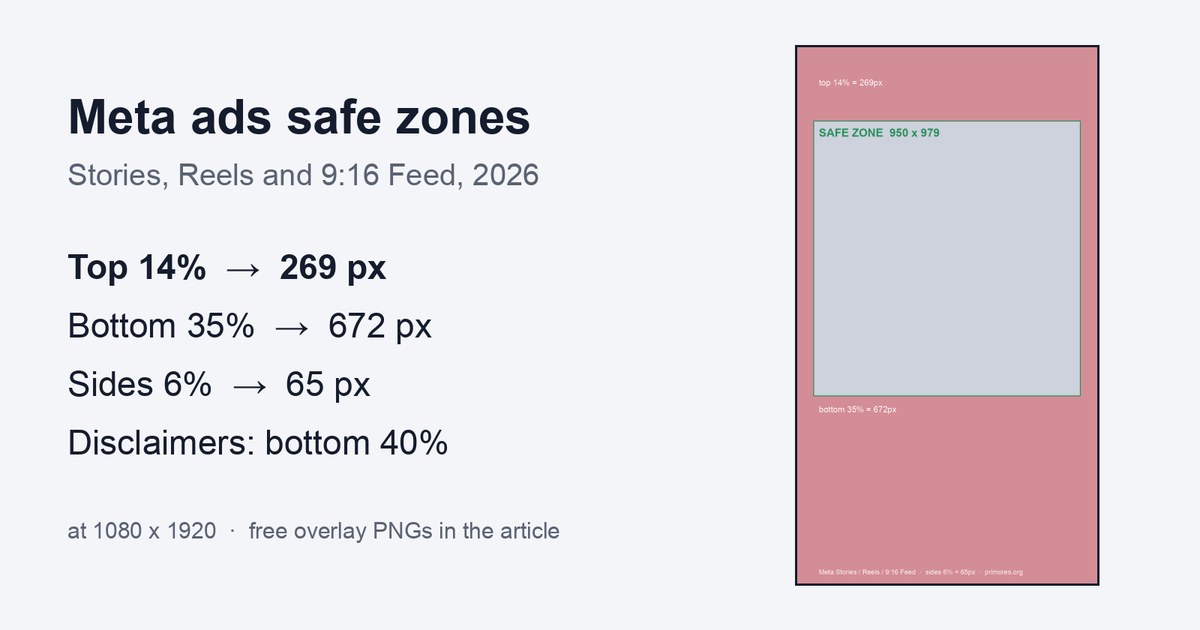
Keep 14% top, 35% bottom and 6% each side free of text on Meta Stories and Reels ads: 269, 672 and 65 px at 1080x1920. Free overlay PNGs inside.
What are the Meta ads safe zones in 2026?
By Andrej Ruckij · November 17, 2026
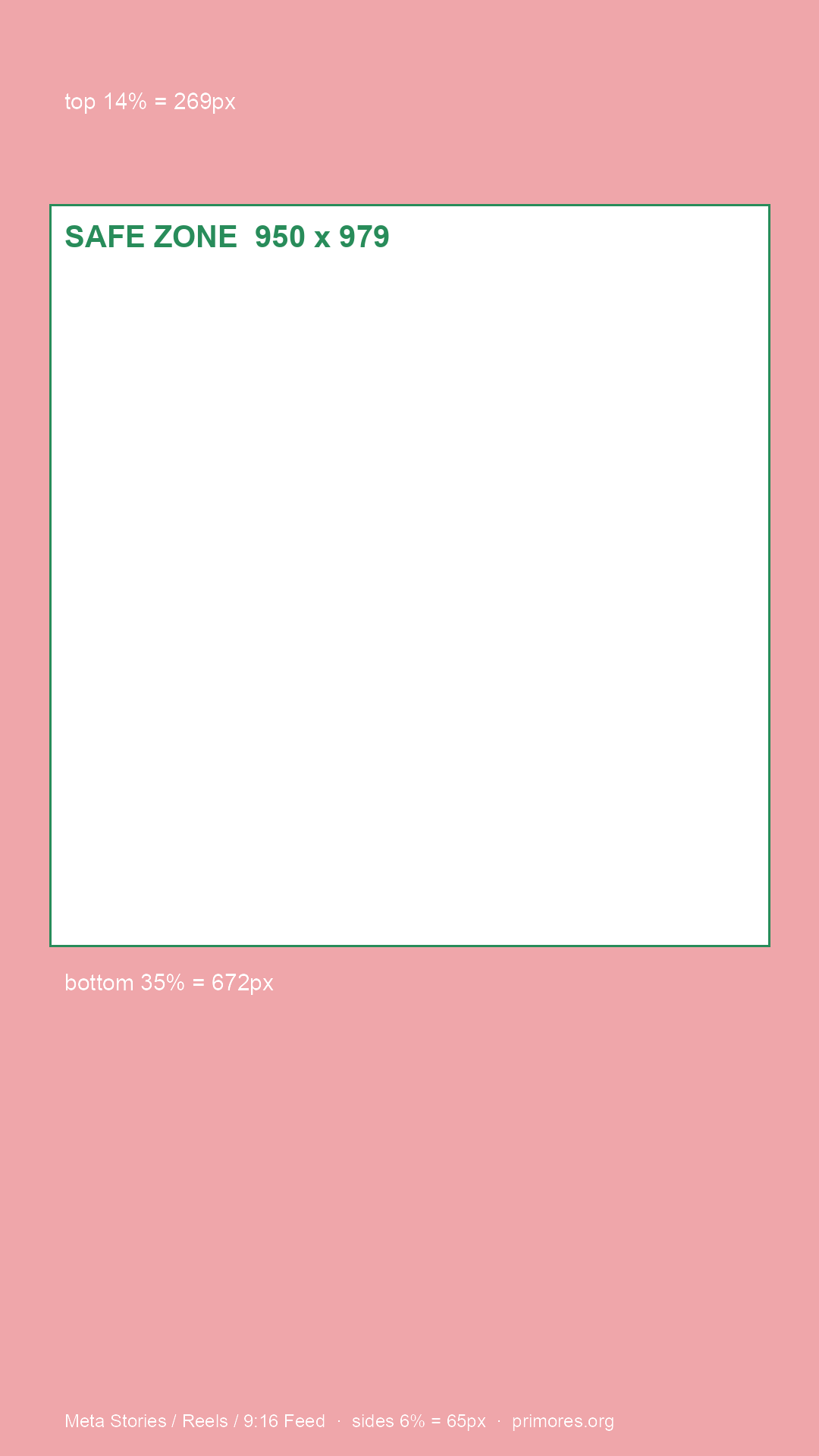
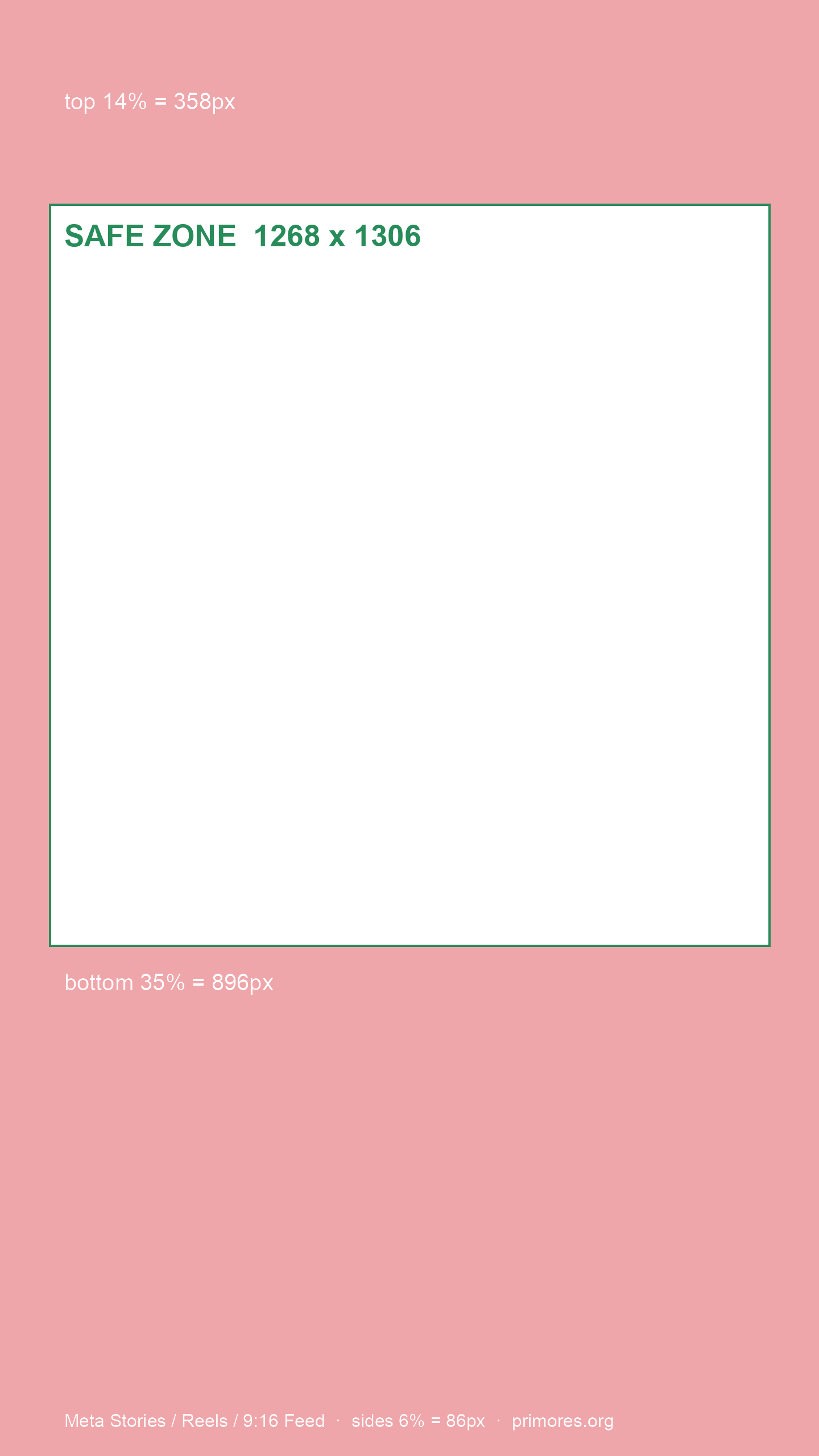
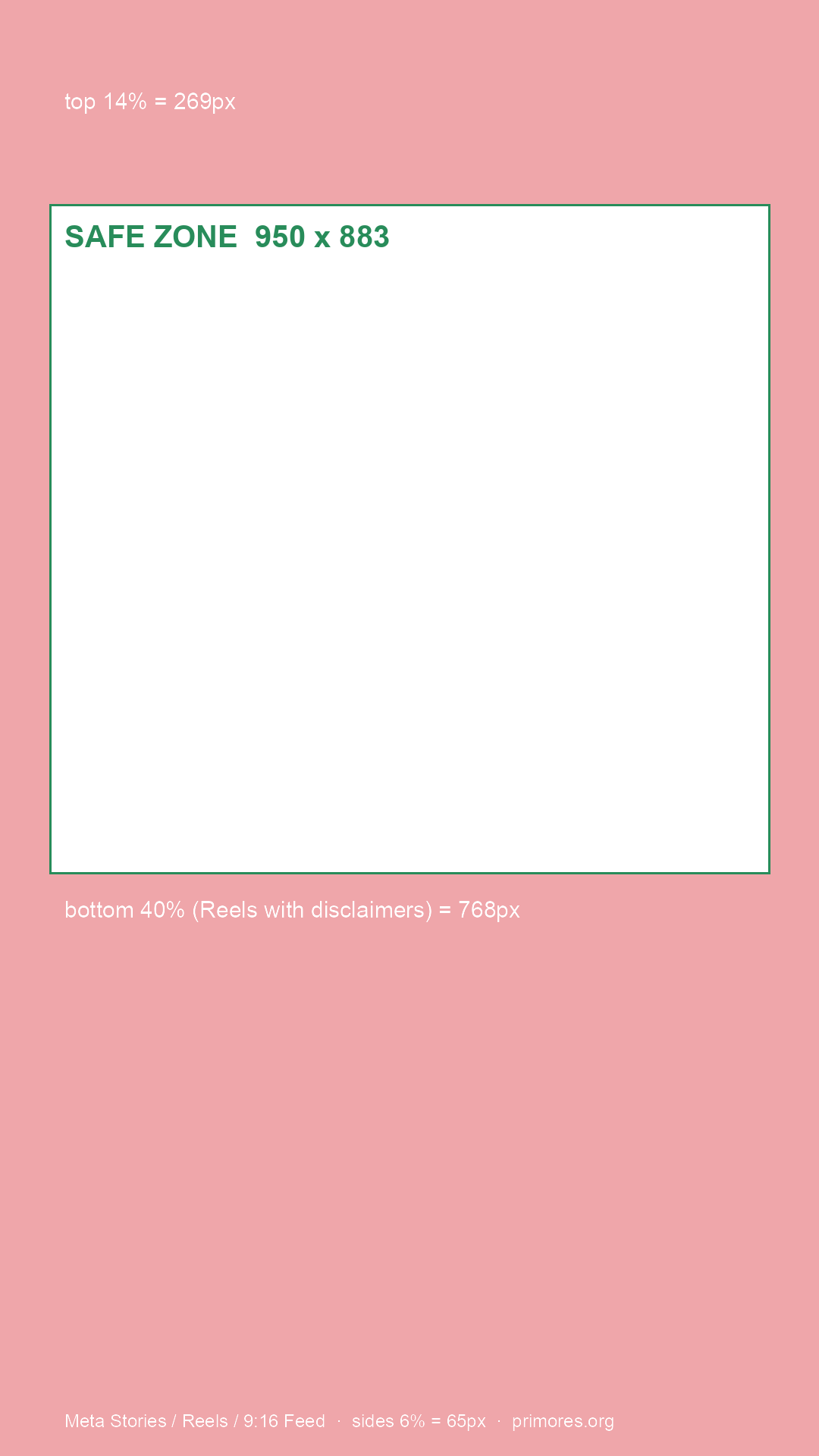
TL;DR: For 9:16 ads in Instagram and Facebook Stories, Instagram Reels and 9:16 Instagram Feed video, Meta’s Ads Guide and help center say to leave roughly 14% of the top, 35% of the bottom and 6% on each side free of text and logos. On a 1080x1920 canvas that’s 269 px at the top, 672 at the bottom and 65 on each side, so you’re left with a 950x979 box for anything you want read. On 1440x2560, the size Meta now recommends, it’s 358, 896 and 86. Reels ads with disclaimers need the bottom 40% clear. Meta publishes no pixel numbers for 1:1 and 4:5 Feed ads, only “keep the bottom and side edges free”. If a guide tells you 20% at the bottom of Stories, it’s out of date or quoting the link-sticker rule. Our free overlay PNGs are below.
We re-cut every campaign for every placement, so these margins come up on every 9:16 cut. Here’s what Meta itself says, page by page, and where the popular guides drift from it.
Meta ads safe zones by placement
All numbers below come from Meta’s own Ads Guide pages, read in November 2026. Each 9:16 Stories and Reels page gives the same three numbers. The Instagram Reels image page puts it like this: “Consider leaving roughly 14% of the top, 35% of the bottom, and 6% on each side of your asset free from text”. Facebook Stories video adds “and logos”.
| Placement | Ratio and Meta’s recommended size | Top | Bottom | Sides | At 1080x1920 | At 1440x2560 |
|---|---|---|---|---|---|---|
| Instagram Reels (video and image) | 9:16, 1440x2560 | 14% | 35% | 6% | 269 / 672 / 65 px | 358 / 896 / 86 px |
| Instagram Stories (video and image) | 9:16, 1440x2560 | 14% | 35% | 6% | 269 / 672 / 65 px | 358 / 896 / 86 px |
| Facebook Stories (video and image) | 9:16, 1440x2560 | 14% | 35% | 6% | 269 / 672 / 65 px | 358 / 896 / 86 px |
| Instagram Feed, 9:16 video | 9:16, 1080x1920 | same as Reels and Stories | 269 / 672 / 65 px | |||
| Reels ads with disclaimers | 9:16 | 40% | 768 px bottom | 1,024 px bottom | ||
| Facebook Reels | no spec page I could open | see below | ||||
| Instagram and Facebook Feed, 1:1 and 4:5 | 4:5, 1440x1800 | no number | keep clear | keep clear |
The pixel figures are my arithmetic on Meta’s percentages. The safe box at 1080x1920 is 950 px wide and 979 px tall, a bit more than half the frame. That’s less room than most people expect, and it’s why a headline that looks fine in the editor ends up under the profile name or the CTA button.
Two lines from Meta’s help article on text overlays fill in the rest. The 9:16 rule covers more than Stories and Reels: “For ads with a 9:16 aspect ratio in Stories, Reels, Feed and Facebook in-stream reels, keep the edges (top, bottom and sides) free of key creative elements, text and logos.” And for disclaimers: “If you’re including disclaimers on your Reels ads, you should leave the bottom 40% of your ad free from text, logos and other key creative elements.”
Download the Meta safe zone template
I couldn’t find a downloadable template from Meta. Its tool is a toggle inside Ads Manager (more on that below). So we made three transparent PNG overlays with the numbers above. Red is the area to keep free of text and logos, the green box is the safe zone:
- Overlay for 1080x1920
- Overlay for 1440x2560, Meta’s recommended size
- Overlay for Reels with disclaimers, 1080x1920, bottom 40%
How to use them:
- Figma: drag the PNG onto a 1080x1920 (or 1440x2560) frame, set it to the top layer, lock it, and hide it before export.
- Canva: upload the PNG, add it to a 1080x1920 design, stretch it to the edges, and set transparency to about 50%. Delete it before you download.
- CapCut or Premiere: put the PNG on the top video track for the whole length of the clip, check every text card against it, then turn the track off for the export.
If you’d rather have SVG for Figma, adkit.so and admanage.ai both offer SVG versions. Check their Stories numbers against the table above first (next section).
Why do some guides say 20% for Stories?
Two reasons. One is that 20% is real, just for something else. Meta’s Instagram help page on the link sticker says to “leave roughly 14% of the top and 20% of the bottom of your creative free from text”. That’s the clearance for the call-to-action sticker. Ads Uploader traced the 20% figure back to the same page and says it “describes the clearance needed for the call-to-action sticker alone.”
Meta’s current Ads Guide pages for Instagram Stories and Facebook Stories all say 35%. I checked the Facebook Stories video page for “20%” and for “384 px” (20% of 1920): neither appears. The other is that older guides listed Facebook Stories video at 20%, and some popular templates still do. If you downloaded one last year, redo your Stories frames.
A newer blog post says Stories and Reels were “unified” into one safe zone in March 2026. I couldn’t find a Meta announcement with that date. What I can confirm is the current state: every Stories and Reels page I could open says 14/35/6.
What are the Facebook Reels ad safe zones?
Meta’s Ads Guide lists “Facebook Reels” and “Ads on Facebook Reels” in its index, but every spec page I tried for them returned a 404. So there’s no Meta number for Facebook Reels I can quote. Practitioners use the Instagram Reels numbers for it.
One extra worth knowing: the Reels interface has a column of buttons (like, comment, share) on the right. Adkit marks it as a band about 227 px wide starting around 1,152 px from the top on a 1080x1920 frame, and Ads Uploader says the bottom-right corner needs about 40% clear. Those are practitioner measurements, not Meta’s. Still, the safe bet is to keep a price or a logo out of the lower right.
What about Feed ads in 1:1 and 4:5?
Meta gives no pixel numbers for Feed. Its Instagram and Facebook Feed image pages list the size (4:5, 1440x1800) and nothing about safe zones. The help article only says: “For Instagram Feed ads using non-9:16 aspect ratios (such as 1:1 or 4:5) keep the bottom and side edges free of key creative elements, text and logos.”
The working numbers you’ll see around, like 250 px top and bottom with 100 px sides on a 1080x1350 frame, come from practitioners (Ads Uploader). They’re a sensible buffer, not a Meta rule. Facebook Feed video is 4:5 at 1440x1800 in Meta’s guide, while Instagram Feed video is 9:16, so don’t reuse one Feed video for both without checking.
What happens to text outside the safe zone?
Three things, and only one of them is the interface.
The interface covers it. Meta names the profile icon and the call-to-action as the things that sit on top of your ad. Meta’s help article says the safe zone is “the area within your ad where important elements — like text overlays and logos — will not be cropped out or covered by the user interface.”
Tall phones crop it. From the same article: “On devices with screens that are taller than the 9:16 aspect ratio, we may either zoom the creative to better fill the whole screen (which can crop areas outside the safe zone), or show the creative in its original 9:16 aspect ratio and use a black background to fill any extra space.”
Advantage+ can move or crop it. Meta’s developer docs describe creative features that change the frame: “Visual touch-ups” (image ads only), described as “automatically cropped and expanded to fit more placements”, “Expand image”, and “Add overlays” with “text you have provided”. “Adapt to placement” is on by default, with 4:5 and 9:16 enabled. If your layout matters, check which of these are switched on before you publish.
Does it hurt results? The only number I found is Meta’s own: “Reels ads with safe zone violations have a 39% lower CTR” compared with ads that respect the safe zones. It comes from 58 Brand Lift studies run from June 2021 to March 2022, quoted on Booyah’s blog and credited to a Meta author. That’s observational data from an older Reels interface, not a controlled test, so read it as “it matters”, not as “you’ll lose 39%”. I found no independent test.
How to check your ad before you publish
- Design on 1440x2560 or 1080x1920 with the overlay on top (the PNGs above). Keep the headline, offer, logo and any price inside the green box.
- Keep key copy off the lower right on anything that runs in Reels, where the button column sits.
- In Ads Manager, open the ad preview and toggle on the Safe zone guardrail. Meta’s help article: “The safe zone is the area inside the yellow overlay that appears on your creative.” Check every placement in the preview, not only the first one.
- Look at the Advantage+ creative settings on the ad. If you built the frame by hand, decide whether you want “Visual touch-ups” and “Add overlays” on.
- If the ad has a disclaimer, use the 40% overlay instead.
To check it worked: in the preview with the guardrail on, nothing you’d want a viewer to read sits under the yellow area or under a button, in any placement.
If you’re producing a lot of variants, this is the step that’s easiest to automate. I covered how we go from one piece of research to many ad versions in research to 360 ad variants, and the creative side of AI-made ads in do AI-generated ads work.
Who this is for
Anyone making Meta ads for Stories, Reels and 9:16 Feed: in-house designers, small agencies, founders doing their own ads in Canva. It applies to video and static. It doesn’t cover organic Reels, which Meta’s Ads Guide doesn’t address, or the Instagram profile grid crop, which is a different thing.
Sources
- Meta Ads Guide, Instagram Reels video and image
- Meta Ads Guide, Instagram Stories video and image
- Meta Ads Guide, Facebook Stories video and image
- Meta Ads Guide, Instagram Feed image, Facebook Feed image, Facebook Feed video, Instagram Feed video
- Meta Business Help Center, About text overlays and the safe zone for ads
- Instagram Help, About link sticker on Instagram Stories
- Meta for Developers, Advantage+ creative
- Ads Uploader, Meta ads safe zones
- Adkit, Meta safe zones
- Admanage, Instagram Reels safe zone
- Billo, Meta ads safe zones
- Booyah, Why you should use creative designed specifically for Reels